
Table of Contents
- Why Play Mobile Games on a PC? Let’s Be Real
- Options for Playing Mobile Games on Windows
- Step-by-Step Quick Start Guides
- Pro Tips to Make PC Mobile Gaming Run Flawlessly
- Minimum PC Specs for Smooth Emulator Play
- Wrapping Up
- FAQ
If you’ve ever screamed at your phone mid-PUBG Mobile firefight because your thumbs fumbled the aim, or watched your Genshin Impact session cut short as your device hit 1% battery, this guide‘s for you. Mobile games are bigger and more polished than ever – we’re talking sprawling RPGs, fast-paced MOBAs, and competitive shooters designed for hours of play – but squeezing all that action onto a palm-sized touchscreen just feels wrong. Your PC has the power, screen space, and proper controls to turn your favorite mobile titles into a far more enjoyable experience, and getting set up isn’t nearly as complicated as it sounds. Let’s break down every method, tool, and pro trick I’ve picked up after months of testing different setups.
Why Play Mobile Games on a PC? Let’s Be Real
I used to brush off PC mobile gaming as a niche hack until I spent a full weekend grinding Mobile Legends on my laptop. The difference hit me instantly, and it’s not just the bigger monitor.
First, touch controls are inherently clunky for fast action. Trying to flick, tap, and swipe during a close-quarters COD Mobile fight always leaves you lagging behind players with precise mouse aim. On PC, you map every dodge, reload, and skill to dedicated keyboard keys – no more missing shots because your finger covered half the screen.
Then there’s the endless phone pain we all deal with: overheating mid-match, sudden incoming calls ruining ranked runs, battery drain that kills your device by lunchtime, and zero room to multitask. On a desktop or laptop, you’re plugged in indefinitely, your hardware handles all the game’s load without warming up, and you can swap between chatting with friends, streaming music, and checking messages without pausing your game. If you travel with a lightweight laptop, you can even download offline Android titles beforehand and play without Wi-Fi or cell service.
For anyone into competitive play or long idle-game grinds, this shift is a total game-changer. You’ll wonder why you ever stuck to your phone.
Options for Playing Mobile Games on Windows
There’s no one-size-fits-all solution – your ideal tool depends on what games you love, how much customization you want, and your PC’s specs. I’ve tested every major option side-by-side, so here’s a breakdown of the best ones.
- Google Play Games for PC (Google’s Official Native Option)
- Android Emulators for PC: BlueStacks, LDPlayer & NoxPlayer
- BlueStacks
- LDPlayer
- NoxPlayer
- Phone Link (Screen Mirroring, Not True Emulation)
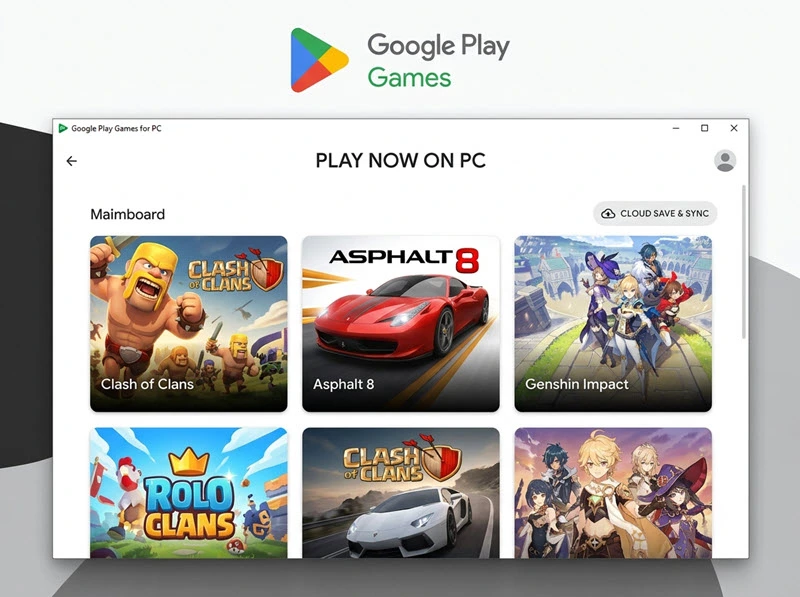
This is the most streamlined pick for casual players who hate messing with complicated software. Built directly by Google, it’s optimized exclusively for Windows 10 and newer systems, with one critical pre-check: your PC needs an SSD, and you’ll have to flip on virtualization in your BIOS first.
Once you log into your Google account, all your existing game progress, purchases, and unlocked skins sync automatically – no starting from scratch. Every supported title gets pre-tweaked for mouse and keyboard input, so you skip the hassle of manually remapping controls. The interface is clean and lightweight, with new games added to its library every month, including fan favorites like Clash of Clans, Genshin Impact, Harry Potter: Hogwarts Mystery, Gacha Life, Asphalt 8, Mobile Legends: Bang Bang, Rise of Kingdoms: Lost Crusade, Top Eleven 2025 Football Manager, Delta Force, Clash Royale and more.
The only downside? Its game catalog is smaller than full emulators, and you can’t install region-locked or niche APKs outside the official Play Store. If you stick to mainstream hits, though, this is the simplest possible setup.
If you want total flexibility, Android emulators are the gold standard. These programs create a complete virtual Android device on your PC, granting full access to the Google Play Store alongside advanced features you won’t find in official Google Play Games. You can tweak resolution, frame rates, custom keyboard layouts, run multiple game instances simultaneously, and manually install APK files for region-exclusive or lesser-known mobile games. Still, each emulator carries its own personality and best-use cases, before you download anything, here’s what you should know about each:
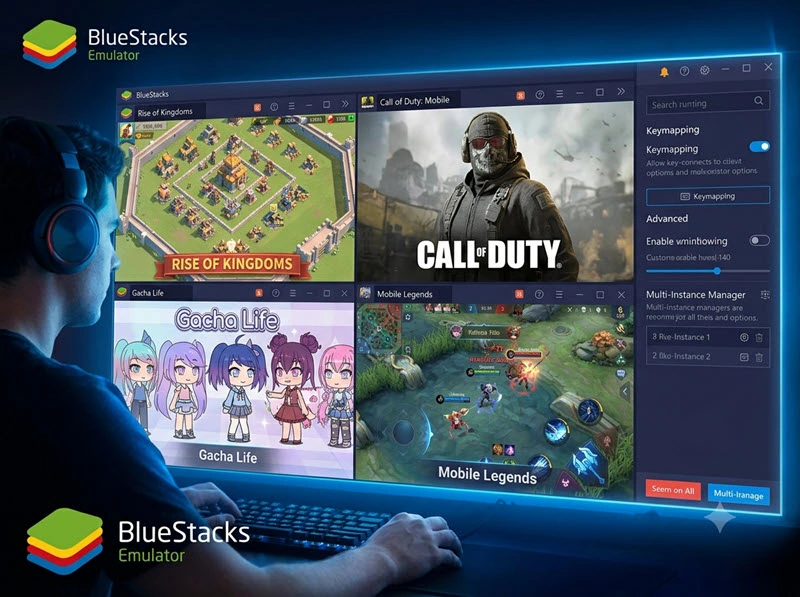
This is the most mainstream emulator for PC, and it’s incredibly user-friendly with an ultra-simple installation and setup process. Boasting great versatility and stable compatibility, it supports running multiple mobile games at the same time. It operates efficiently without excessive PC resource consumption, making it friendly for most ordinary computers.
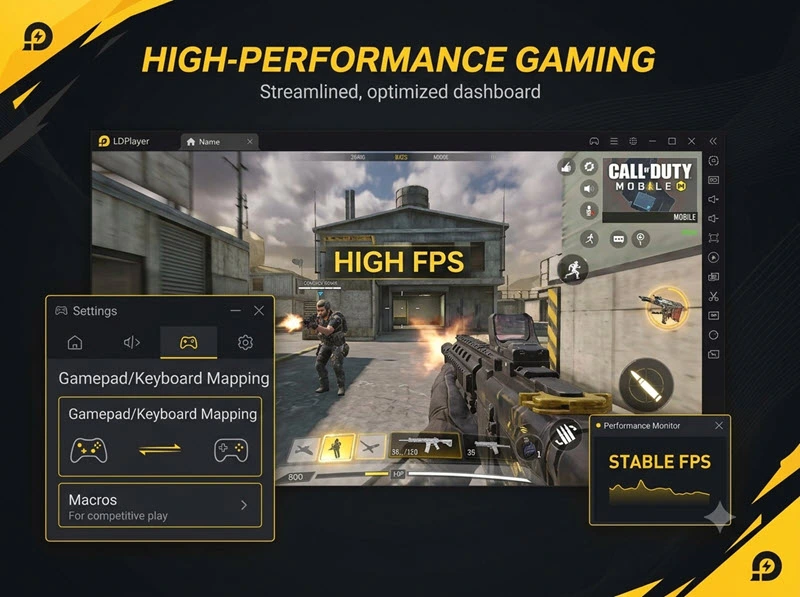
A hugely popular emulator among hardcore gamers, especially with its polished latest LDPlayer 9 version. Tailored for high-performance gaming, it excels at handling fast-paced mobile shooters and immersive RPG titles. This free emulator delivers stable frame rates and optimized performance for all kinds of heavy mobile games.
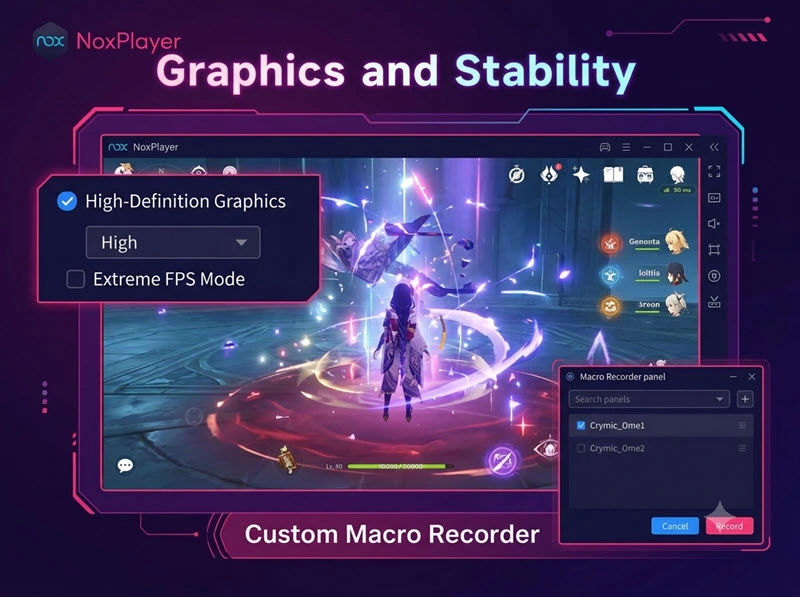
A performance-oriented emulator built for graphically demanding mobile games. It runs high-spec titles like Call of Duty: Mobile and Genshin Impact smoothly with zero lag or stutters. Its powerful multi-instance and multi-drive functions allow you to launch multiple games or several accounts of the same game simultaneously for efficient gaming and AFK farming.
This Windows built-in tool mirrors your phone’s display onto your PC monitor, letting you read texts, open apps, and tap through casual mobile games from your desktop. Don’t mistake it for a gaming solution, though: fast-paced gameplay brings noticeable input delay and graphical stutters, and there’s no way to remap keyboard controls properly. It’s fine for mindless match-three games or managing notifications, but skip it for competitive or story-heavy titles.
Step-by-Step Quick Start Guides
Option A: Google Play Games for PC (Beginner-Friendly)
- Double-check your PC meets the base rules: Windows 10 or newer, an SSD, and virtualization enabled in BIOS.
- Head to Google’s official Play Games site and download the installer file.
- Run the installer and follow the on-screen prompts to finish setup.
- Sign in with your personal Google account—your game data syncs automatically.
- Browse the built-in game library, download any title you want, and hit play immediately.
Option B: BlueStacks (Maximum Customization)
- Grab the official installer directly from BlueStacks’ website to avoid sketchy third-party downloads.
- Launch the setup file and wait for the virtual Android engine to install (this can take a few minutes on slower drives).
- Sign into your Google account to unlock full Play Store access.
- Jump into the settings tab to tweak graphics limits, FPS caps, and custom keybinds for your go-to games.
- Download your mobile title of choice, load it up, and adjust your controls to feel natural for your playstyle.
Both options are easy to set up and offer a much smoother experience than wrestling with touch controls.
Pro Tips to Make PC Mobile Gaming Run Flawlessly
After hours of troubleshooting lag, frame drops, and blurry visuals, these small tweaks make a night-and-day difference to your sessions:
- Turn on CPU Virtualization first: This single BIOS tweak doubles emulator performance—don’t skip it, no matter how tedious the setup feels.
- Remap your controls from scratch: Pre-set keybinds work for quick testing, but custom layouts cut reaction time in competitive shooters. Racing and action games feel even better with a wired gamepad plugged in.
- Balance graphics and frame rate: If your PC stutters during busy combat scenes, dial down resolution or cap FPS to match your monitor’s refresh rate. Emulators like BlueStacks offer dedicated performance and battery-saving modes to toggle between.
- Clear background clutter before launching: Close unused browser tabs, video editors, and background software to free up RAM for smoother gameplay. Most emulators include a one-click performance mode to automate this cleanup.
- Stick to wired internet for multiplayer: Wi-Fi lag ruins ranked matches instantly—an Ethernet cable stabilizes your connection for competitive runs.
- Update your emulator monthly: Developers roll out constant bug fixes and performance boosts; outdated builds often suffer crashes or visual glitches.
- Test multiple emulators for tricky games: Some titles run poorly on BlueStacks but shine on LDPlayer, and vice versa. Don’t lock yourself into one tool if you hit consistent frame drops.
- Steal community configs: Reddit and Discord communities for every major mobile game share optimized graphic and control presets—you’ll skip hours of trial and error by copying their settings.
Minimum PC Specs for Smooth Emulator Play
Cloud gaming barely demands anything from your hardware, but Google Play Games and Android emulators need a baseline setup to avoid constant lag:
- Windows 10 or later operating system
- At least 10GB of free storage space
- 4 physical CPU cores (8GB RAM minimum; 16GB RAM recommended for heavy 3D games)
- Integrated graphics equivalent to Intel UHD 630 or better
Wrapping Up
You don’t need a flagship smartphone or a top-tier gaming rig to enjoy mobile games the way they’re meant to be played. Whether you’re grinding daily clan missions in Clash of Clans, climbing ranked ladders in Mobile Legends, or wandering Teyvat in Genshin Impact, moving your playtime to PC eliminates every annoying limitation of mobile touchscreen gaming.
Start simple: if you’re new to emulation, test Google Play Games first for zero-fuss setup. If you crave full customization and access to every mobile title under the sun, download BlueStacks or LDPlayer next. Spend ten minutes tweaking your controls and graphics settings, and you’ll never want to go back to squinting at your phone screen mid-fight again.
Got a favorite mobile game you’re dying to play on PC? Try one of these tools this week – trust me, the bigger screen and precise mouse aim will completely rewire how you experience your favorite mobile hits.
Check out the free mobile and browser games you can play right now!
FAQ
Can I play iPhone mobile games on PC?
AirPlay mirrors your iPhone screen to a desktop, but all in-game controls still happen on your phone. For native PC play of iOS titles, cloud gaming platforms accessed via Safari are your only workaround right now.
Which emulator is the best all-around pick for beginners?
BlueStacks takes the top spot for most players—it boasts the largest game library, intuitive setup, and endless customization tools for every genre of mobile game. LDPlayer and NoxPlayer are fantastic alternatives if you run into performance issues.
Is playing mobile games on PC possible for anyone?
Absolutely. As long as you have a Windows machine meeting the minimum hardware requirements, you can run emulators or Google Play Games Beta with zero advanced technical knowledge. Cloud streaming even works on low-power laptops that can’t handle local emulation.